The larger the number of sales you generate the more important it is to not waste time physically picking those items from your inventory.
The most efficient way of doing that is to generate order picking list so you can pick one item after another in quick succession and take those items in bulk to your packaging area.
One of the most common inventory setups on YouTube is for clothing resellers, which is demonstrated by the illustration below.
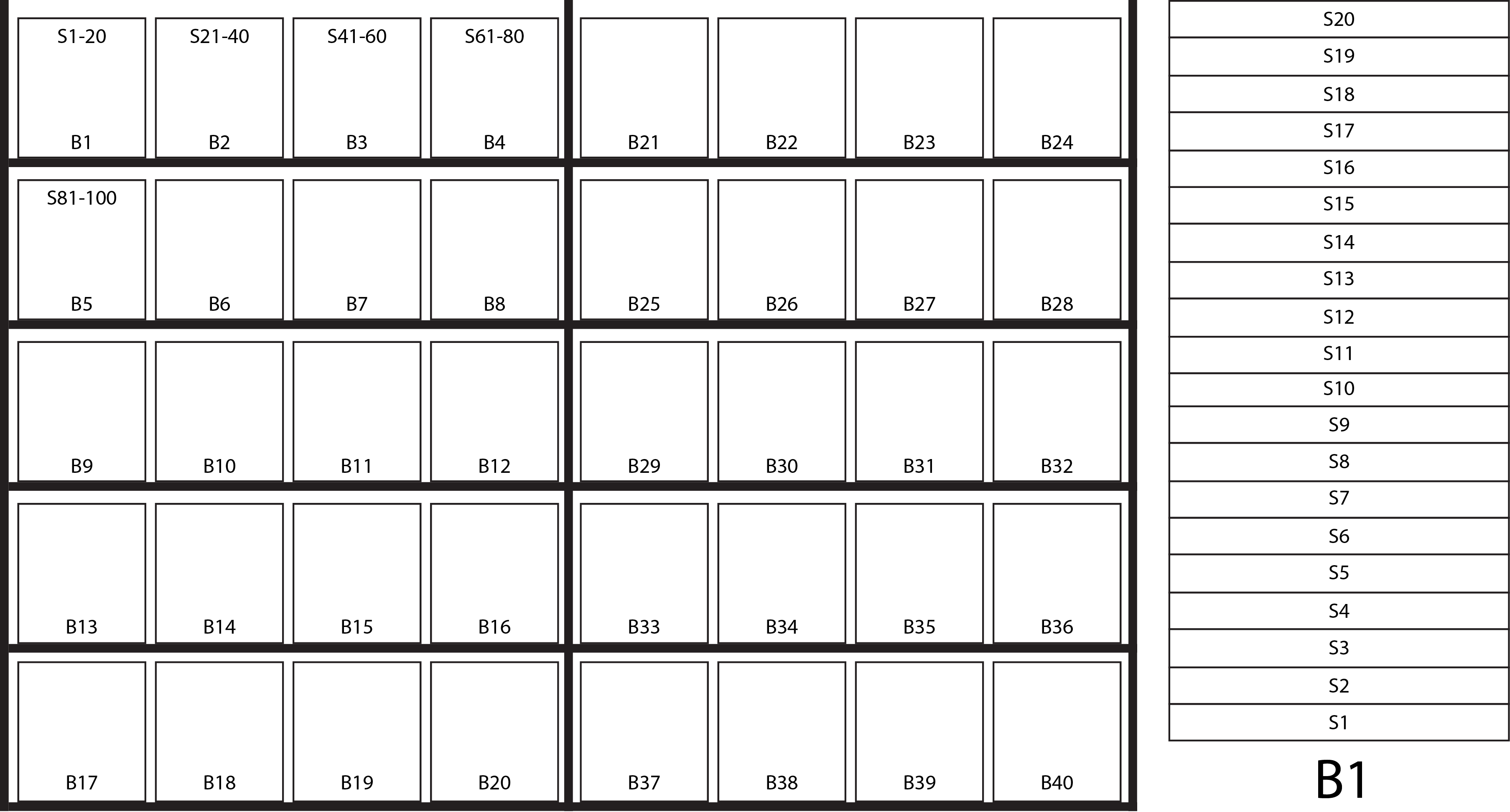
Here we have two side-by-side black metal shelving units with five shelves each.
Each shelf has four cardboard boxes (BINs) on them that are numbered “B1, B2, B3” and so on.
Each box can hold 20 pieces of clothing. Each piece of clothing is placed inside a plastic bag which has a SKU number on it, such as “S1, S2, S3” and so on. Items are stored in each box by ascending order of the SKUs.
If a clothing seller prepared 100 pieces of clothing prior to uploading anything to eBay the first 20 SKUs would be in box 1 and then next 20 would be in box 2 as shown below.
The SKU numbers would not appear on the actual boxes - they are shown on the first five boxes to illustrate how the first 100 items would be initially stored prior to any sales.
There are two major problems with this inventory system.
- To create empty boxes, as items are sold, sellers have to routinely consolidate their entire inventory. That involves determining how many items are in B1 and moving items from B2 to the back of B1 until its full. If B2 does not have enough items in it to fill B1 then you have to also transfer items from B3. Then the whole process is repeated with each boxe down the line until the inventory is condensed.
- SKUs do not have fixed locations so in one week a range of SKUs could be in box B39 and week later they are in box B14. This wastes further time in having to hunt for items.
A better system via GarageSale would be to put new inventory items in the back of whatever BIN has room.
For that to work your inventory system should keep track of how many items are in each BIN. GS Groups (folders) do exactly that. Thus, in the above scenario, if Group B1 shows 12 items you know you can put 8 new SKUs into that BIN. SKUs would would be kept in ascending order within each BIN only and not from BIN to BIN.
You would need to generate a list of the new SKUs you entered into inventory and what BINS they were placed in within GS so that you could physically put them in the correct BIN.
- One way would be to use quick handwritten shorthand notes such as S705-S710 B32 (i.e., SKUs 705 to 710 into BIN 32).
- The other way would be for GS to generate a list of SKUs equal to or above a given SKU number and provide the BIN numbers they are in. This would then be printed off as a checklist to put your new SKUs away into the BINS.
When orders came in GS would generate a picking list containing a item’s:
- SKU.
- Parent Group Name, which corresponds to the physical location BIN location.
- Title.
- Possible support for a small image based upon the gallery image.
- There might be scenarios where a seller might not want to name groups after the BIN numbers, but record the BIN in a separate BIN textfield located right under the SKU textfield in the Options tab.
Data would be disabled or enabled on the picking list via checkboxes. You should also be able to access these via AppleScript and JavaScript.
This system would be far more efficient as a seller would no longer have to waste huge sums of time consolidating inventory. You do not have to waste time searching for which BIN a item is in as GS tells you.
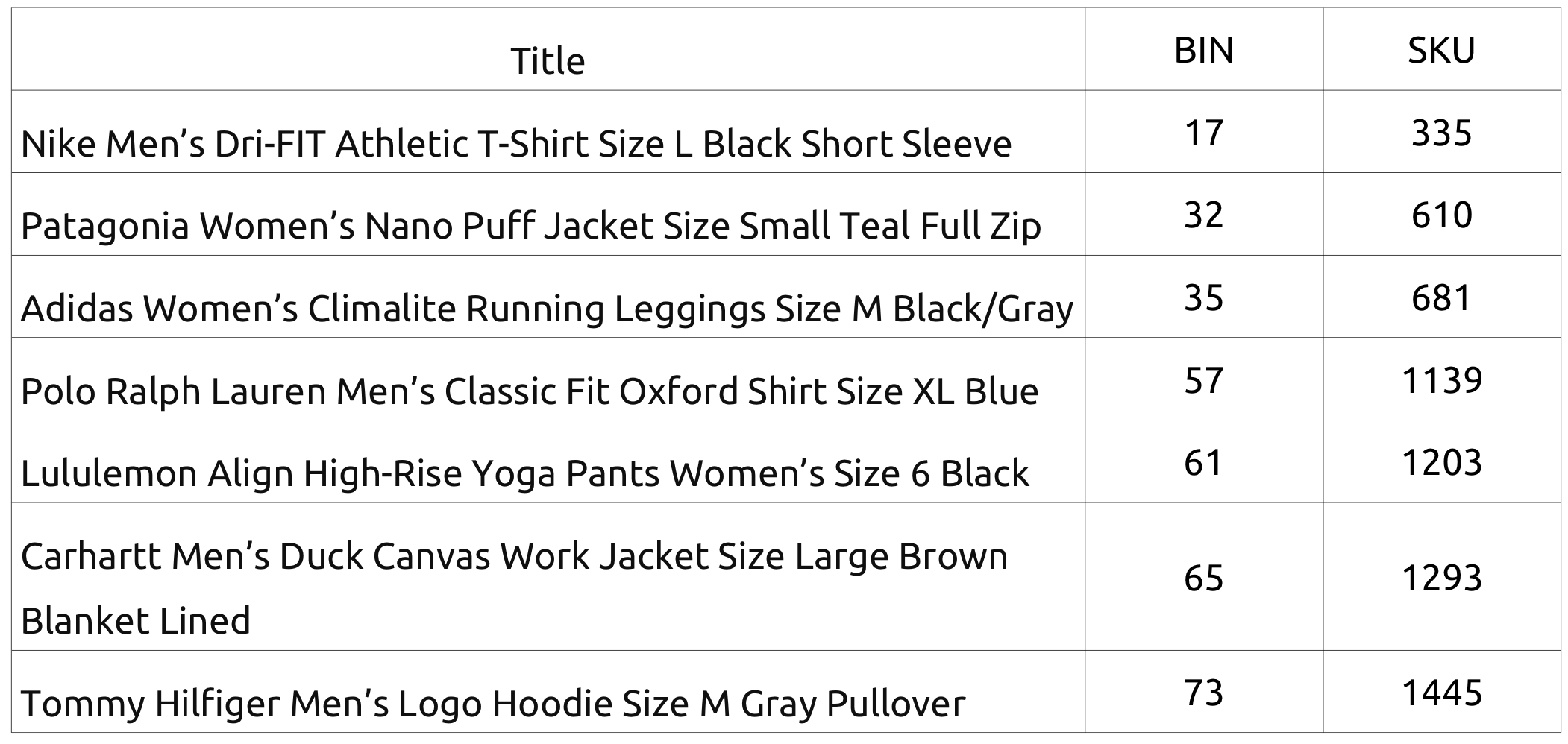
A very simple picking, list with the option to sort the orders in ascending order by BIN, might look like the following. This could then be printed out or displayed on a portable device such as a tablet.