I am attempting to upload a large number of old books to list on Ebay. I can format a CSV spreadsheet to correctly pick up standard eBay fields such as Title and Description, but when I try to use the “Attribute” field with tags like Place of Publication, Year Printed, Publisher, etc., they don’t get uploaded to Garage Sale.
Worse, there seems to be some default items there at the top of the draft from a pick list that seems almost random. I’m clearly missing something, but what?
You are trying to import a CSV file by using the “Import Listing” command in GarageSale, did I get this correctly?
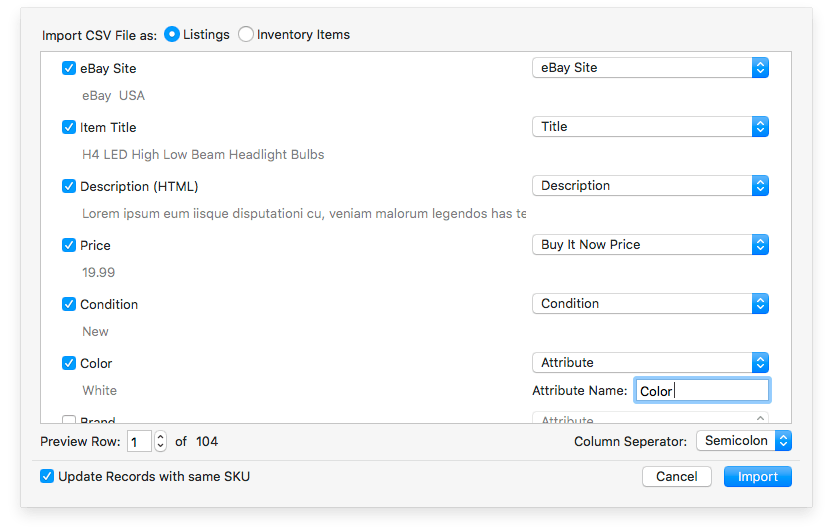
Please see the screenshot here where you can see how to import Attributes from CSV:
No, because in my case, for a book, I’m trying to import specifics like “Publisher” and “Year Printed”, and those options don’t show up in the tooltip.
In your CSV do you have specified a column for “Publisher” and a column for “Year Printed” (with its values)?
If yes, you can simply select them as shown in the screenshot here for “Color | White”:
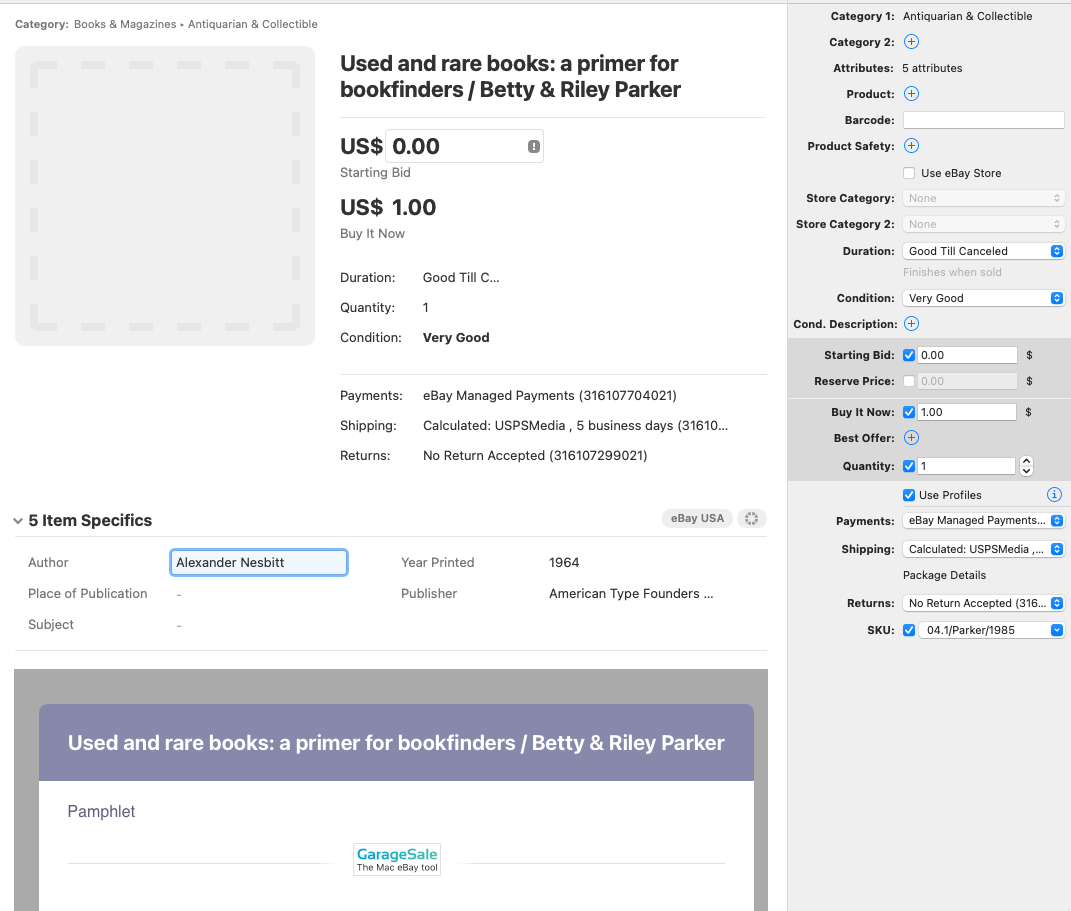
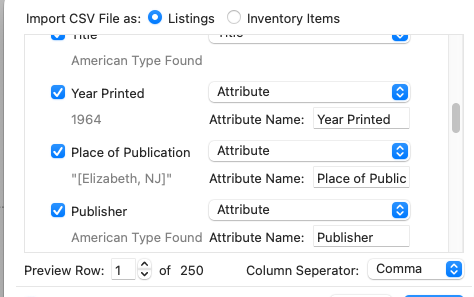
Yes, I have those columns in the CSV, but even when I specify them as you are showing, the specific attributes (unlike the standard eBay fields shown in the tooltip) are not being imported. I’ve attached screen shots showing the Import Dialog and the resulting record imported into Garage Sale. In the example shown, the file contains values for the 5 specific fields shown, but instead of importing them into the record, those five item specifics simply show fields that seem to be defaulting to some sort of pick list, rather than the imported values for that record.
Thank you for posting the screenshot, now I get it.
My guess is that there somehow is an issue with your CSV. Maybe it has to do with the square brackets?
For test purposes you could try to create a CSV that only contains one single listing. Try to import it in GarageSale. If it still won’t work, feel free to post that CSV here so I can have a closer look.
I don’t upload item attributes for any items, including antique books.
Commonly required item attributes with templates are already filled out with “N/A” or something similar.
The AppleScript below will create a list of commonly shared attributes based on if the item is a Media item (book, record, cassette) or a non Media item.
This script will hide GS while it runs because you do not want to be altering the listings that are selected during this operation. It then makes GS become visible after its done. The amount of time GS is not visible will depend on the amount of listings you select and the processing power of your computer. Testing it on small duplicate groups of listings would be suggested.
The AppleScript is written to work specifically with “Garage 9.8.1” which is what I renamed that version of GS so you may need to change the lines referring to GS to whatever its named on your computer.
Test in the Script Editor and if compile as an app its useful as it should run faster as an app.
You can add or delete other attributes as needed.
set theCatChoices to {"Media", "Non Media"}

set theFavoriteCat to choose from list theCatChoices with prompt "Select Attribute List:" default items {"Non Media"}

if theFavoriteCat is false then
	return
end if

tell application "System Events" to tell process "GarageSale" to set visible to false


tell application "GarageSale 9.8.1"

	repeat with theListing in (get selected ebay listings)

		tell theListing

			set emptyString to ""

			set SpecList to item specifics of the theListing

			if SpecList ≠ emptyString then

				set SpecCount to count of SpecList

				repeat with i from 1 to SpecCount

					try
						set theSpecItem to specific name of item i of SpecList
						set theSpecific to remove item specific specific name theSpecItem
					end try

				end repeat

			end if

		end tell

	end repeat

end tell

tell application "GarageSale 9.8.1"

	repeat with theListing in (get selected ebay listings)

		tell theListing

			if item 1 of theFavoriteCat is "Media" then

				set theSpecific to add item specific specific name "Author" values {"N/A"}
				set theSpecific to add item specific specific name "Book Title" values {"N/A"}
				set theSpecific to add item specific specific name "ISBN" values {"N/A"}
				set theSpecific to add item specific specific name "Language" values {"N/A"}

			else if item 1 of theFavoriteCat is "Non Media" then

				set theSpecific to add item specific specific name "Brand" values {"N/A"}
				set theSpecific to add item specific specific name "Color" values {"N/A"}
				set theSpecific to add item specific specific name "Height" values {"N/A"}
				set theSpecific to add item specific specific name "Lenth" values {"N/A"}
				set theSpecific to add item specific specific name "Material" values {"N/A"}
				set theSpecific to add item specific specific name "MPN" values {"N/A"}
				set theSpecific to add item specific specific name "Size" values {"N/A"}
				set theSpecific to add item specific specific name "Style" values {"N/A"}
				set theSpecific to add item specific specific name "Type" values {"N/A"}
				set theSpecific to add item specific specific name "Width" values {"N/A"}

			end if

		end tell

	end repeat

end tell

tell application "System Events" to tell process "GarageSale" to set visible to true
OK, that worked! (pretty much). I made some tweaks, ran it against the listings file, then re-imported the CSV using “update”, and assigning the attribute names. So far so good. What I’d like to do now is use Applescript to remove the Starting Bid field from each listing, since they’re all going to be GTC. I tried using “remove specific field “Starting Bid”, but it didn’t seem to have any effect. Is there a way to do this? Thanks!
This will uncheck the checkbox next to the left of the Starting Bid text field:
tell application "GarageSale 9.8.1"
	repeat with theListing in (get selected ebay listings)
		set the use starting bid of theListing to false
	end repeat
end tell
This will check the same checkbox:
tell application "GarageSale 9.8.1"
	repeat with theListing in (get selected ebay listings)
		set the use starting bid of theListing to true
	end repeat
end tell
If you also want to zero out the Starting Bid price you add another line to the above code:
tell application "GarageSale 9.8.1"
	repeat with theListing in (get selected ebay listings)
		set the use starting bid of theListing to false
		set the starting bid price of theListing to "0.00"
	end repeat
end tell
Change the line referencing GS to whatever its named on your computer. I rename each version by adding the version number.
That’s helpful, thanks (and I’m beginning to get the hang of Applescripting). One tangentially related question: for fields in which I didn’t have values in the imported CSV, I’m grabbing information from other sources and trying to paste it into fields in the record in GS. However, I’ve found that several fields —while I can hand-type the entry—do not support pasting in text from the clipboard. Is there a way around this? Is there some reason why pasting isn’t allowed? Thanks.
I am not expert as I have no formal training in any programming, but have picked up bits here and there.
It might be an issue with text encoding. The program from which you are copying the text may be encoding the text in a given format so it can translate that encoding into different fonts, bold text, text sizes, text colors and so forth.
If you then attempt to paste the encoded text from your clipboard into a another program that does have the ability to recognize that encoding then you might see a bunch of gibberish characters or nothing at all.
Some programs allow you to copy text to the clipboard in different formats such as plain text or rich text (i.e., colors, mixed fonts and sizes) to get around this. Some programs also allow you to paste the contents according to different formats - i.e., the text is transformed being being pasted (such as paste as plain text, HTML, rich text).
With AppleScript you might have to change the encoding of the text before its outputted to where its needed.
You could try opening a new TextEdit document and set it to plain text and paste the text in there and then recopy it. Kind of slow, but perhaps that would show its an encoding issue.
For fields that don’t appear to allow pasting, double check that the field stays active. I’ve noticed many text fields in GS that, after clicking into them, focus is lost, and the cursor is no longer in the field. Clicking into the field again keeps the focus, and then one is able to type or paste text.
Yup, that’s the problem. If I convert the copied text to plain text, the paste works correctly. So this should probably be filed as a bug report, because standard procedure for applications should be ignore any non-text portions of the clipboard and just paste the text. Thanks for your help!
If you then attempt to paste the encoded text from your clipboard into a another program that does NOT have the ability to recognize that encoding then you might see a bunch of gibberish characters or nothing at all.
LOL, I noticed a typo in that paragraph - they key word “not” is missing.
Instead of using keyboard shortcut command-v (paste) you could give shift-option-command-v (“paste and match style”) a try. This way you don’t have convert your rich text to plain text.