Hi Derek,
I don’t think that’s possible. GarageSale is a sandboxed application and can only access files within the “Container” directory provided by the System (exceptions are files selected by the user in Open/Save panels, or drag & dropped files). So even if you replaced the ImageLibrary folder with a symlink to a directory on an external drive with the Terminal app, the system would prevent GarageSale from accessing that folder.
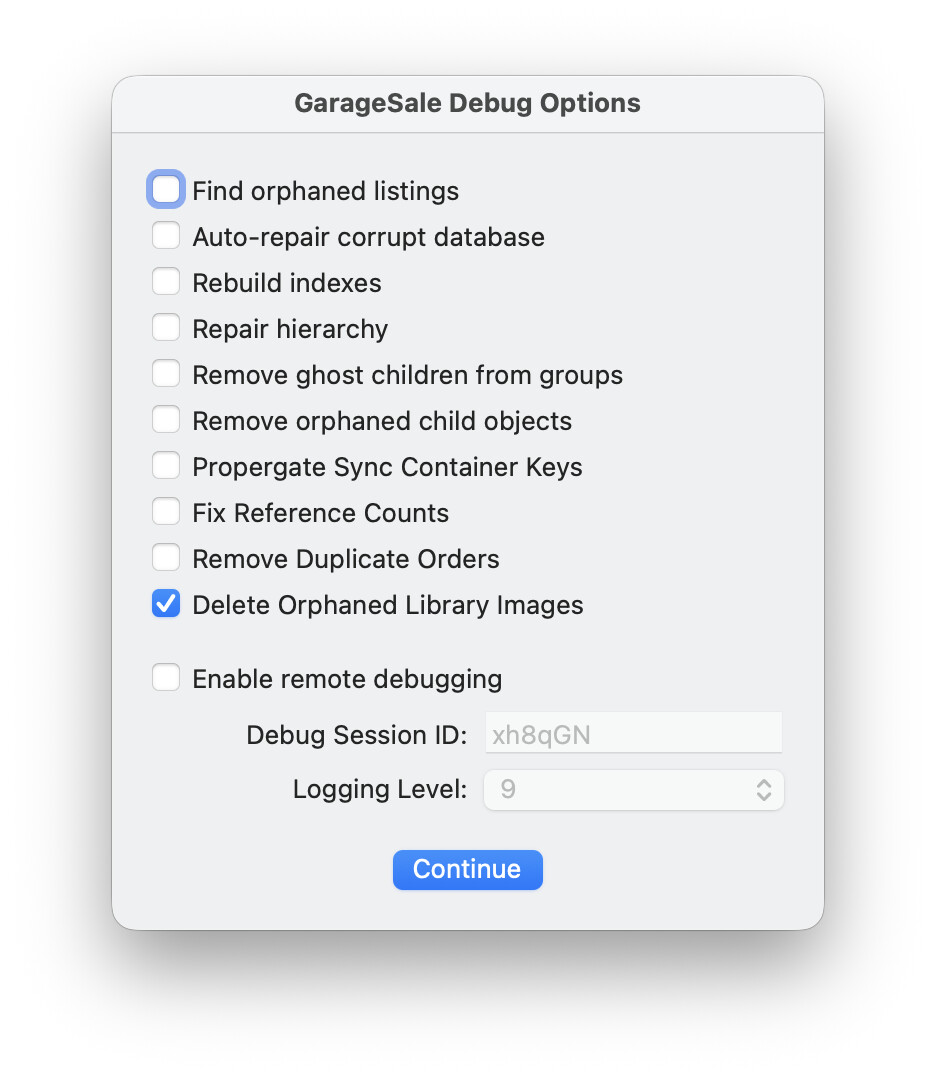
But here is something worth a try. Grab the latest beta version of GarageSale 10 from here GarageSale 10.0 Beta 9 Released. When launching that app, hold down the control key and select the “Delete orphaned listig images” option, which will scan through your image library folder and delete those image from disk, that aren’t used by any listings.
Yes, images are removed from the listing, and the image file is removed from your hard drive. But sometimes GarageSale’s internal record of how many listing are using an image is wrong. In that case, the image would remain on your hard drive.
Sorry, there’s no way of viewing the contents of .gslistings files without importing them first into GarageSale. We used to have a QuickLook plugin for viewing the content of those files in the Finder, but I cannot recall what happened to it.
Regards,
Ilja