I am not very techy so please explain to me like I am a 5 year old.
This application is taking up tons of space on my computer. I have deleted old listings etc. Went to my image library and I have images there from 2024 @ 17,000 of them. Some of the images are from items that I have sold. Unfortunately still have some items left from 2024 that I need the pics for.
Is there another way so the app. does not take up so much storage on my computer.
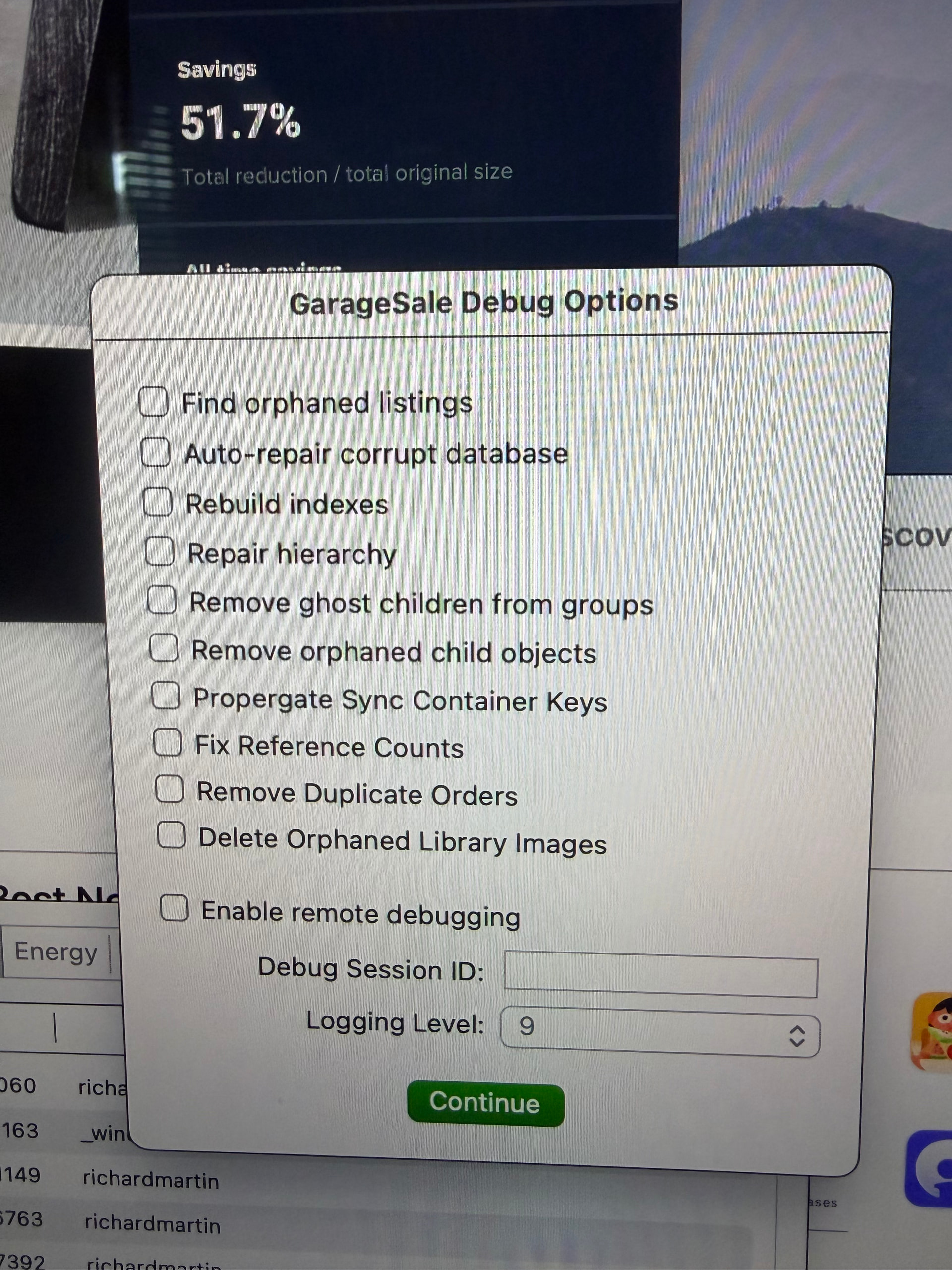
shut down GS and start it while holding down the “control” key. A menu pops open and chick the check box for “remove orphaned Library images”. It will remove unused images only. Any still in use or ended listings are untouched. If you know how to use scripts there is one that removes all but 1 photo but scripts can be fraught with pitfalls for a novice. It is not fixable once you run unless you have a backup copy on Time machine.
You have to wait on GS developers to answer that. 10.0 has been out for quite a few months(apr 12). They let out early versions for more experienced users to help debug new features so as not to cause harm to novice users.
That new option to remove orphaned images files will be available in the upcoming version 10 of GarageSale.
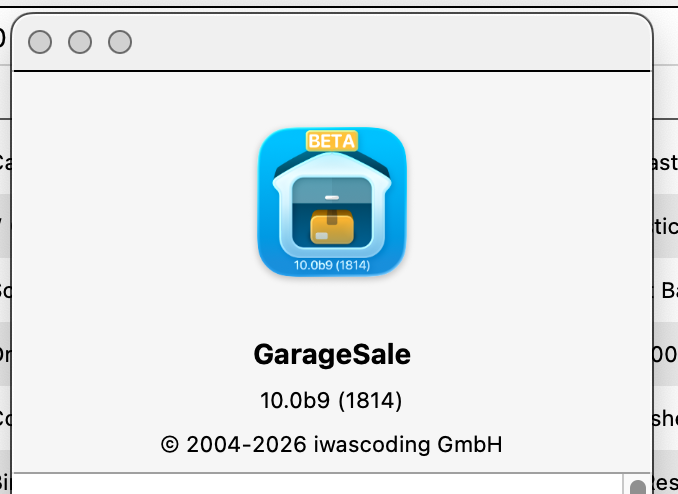
You can already download a beta version of GarageSale 10 here:
GarageSale 10 Upgrade costs:
• beta version accepts GarageSale 9 licenses for now
• free for GarageSale Pro Subscribers
• upgrade for regular users stays at $19.99, but is not on sale yet
This is what you need to use the “remove orphaned images files” option:
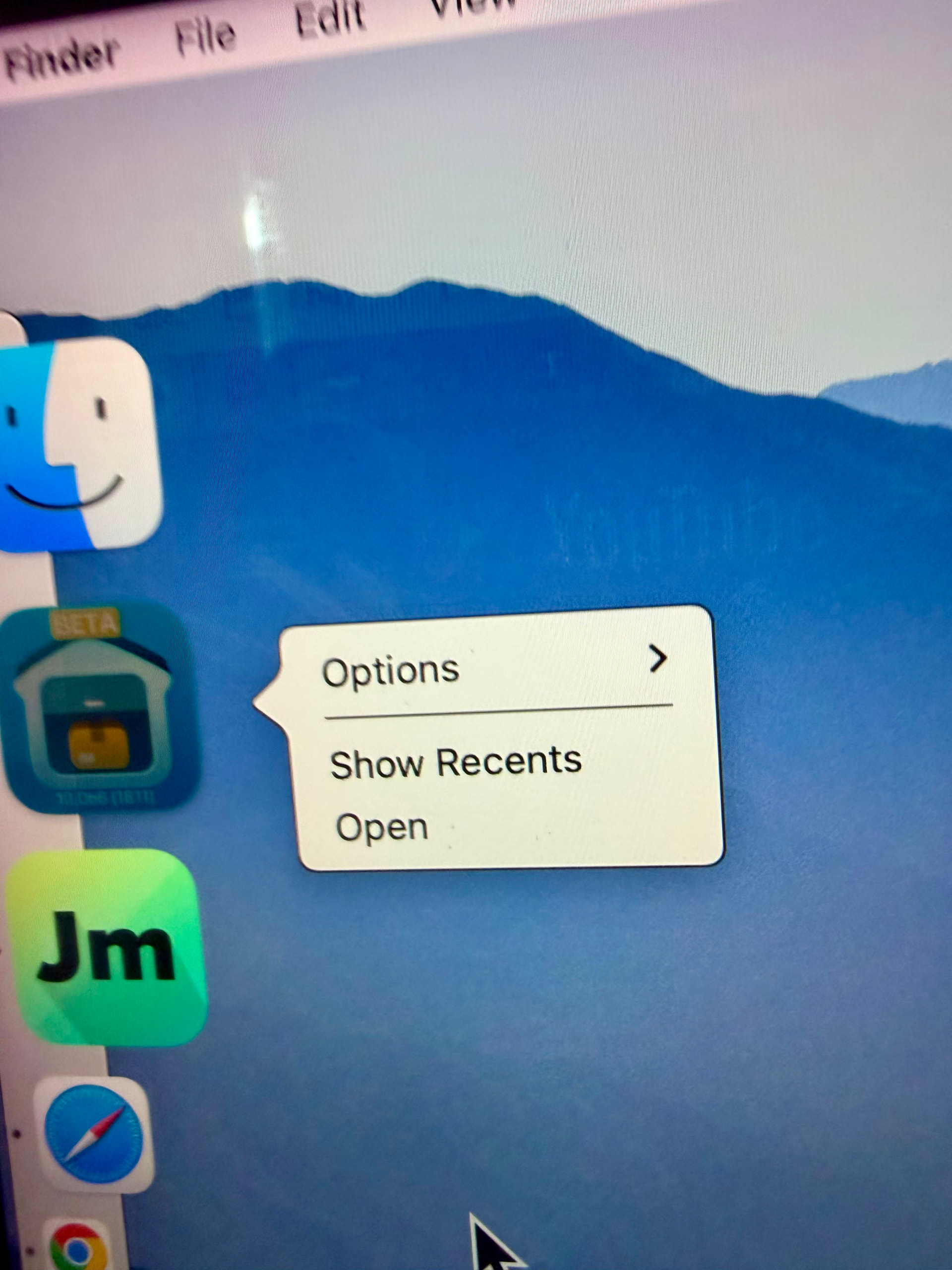
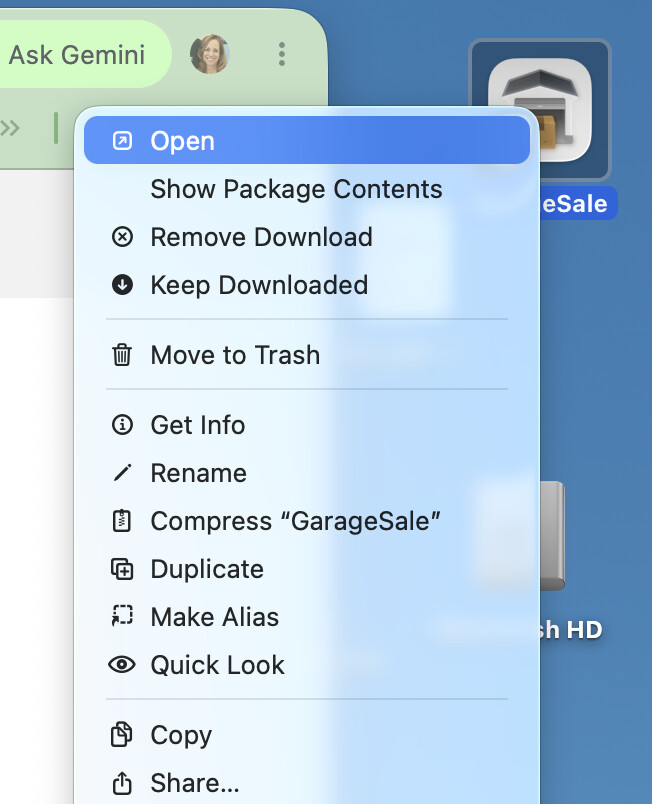
Start GarageSale 10 and immediately click and hold down the control-key on your keyboard.
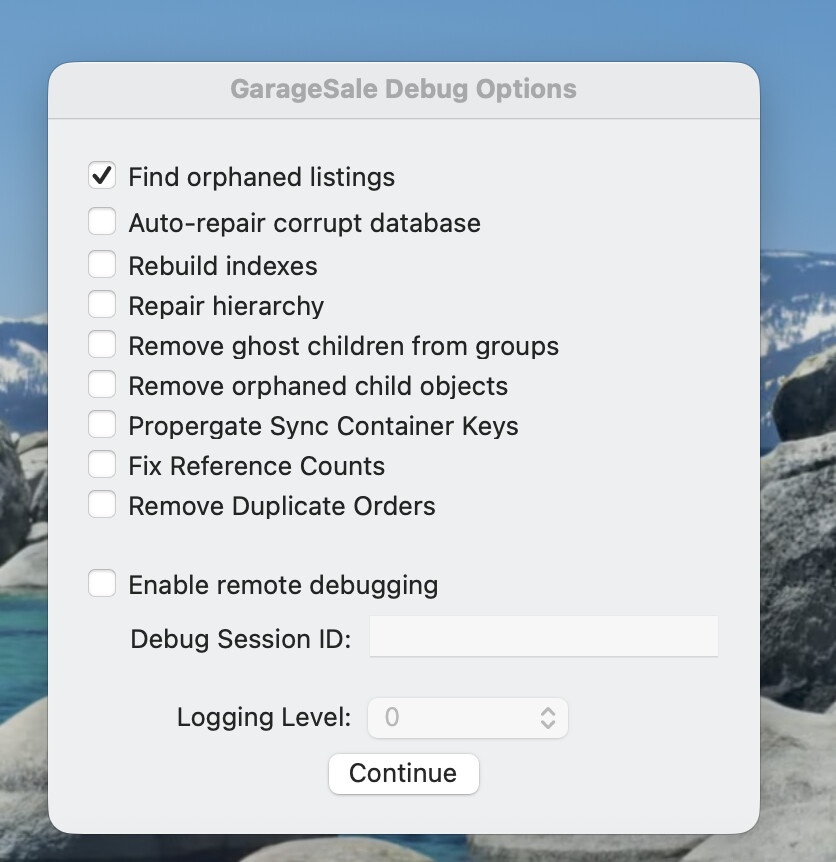
A small window should appear allowing you to enable “debug options”.
Select “Delete Orphaned Library Images”, then hit Continue.
Please make sure to have a current backup of your GarageSale library before use the “remove orphaned images files” option.
 . It was added on 10.0.