One of my most sworn useful apps on my Mac for GS, besides PopClip and Typinator, is JPEGmini [I finally upgraded to JPEGmini Pro, but really just the non Pro is fine for GS - Pro does video which is only useful in GS if you send videos to eBay, and I don’t]. GS is tons more responsive since I started using the app.
What it does mean is an extra step though. I don’t use the Media Picker from GS because that just pulls the file from Photos, which for me is bad due to file size and privacy [my photos have the GPS coordinates and those are kept on eBay listings when viewing the images in a layout [not the eBay gallery], so I have a workflow that adds 2 extra, but quick steps:
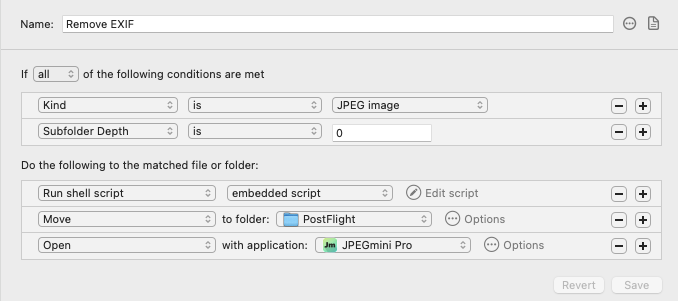
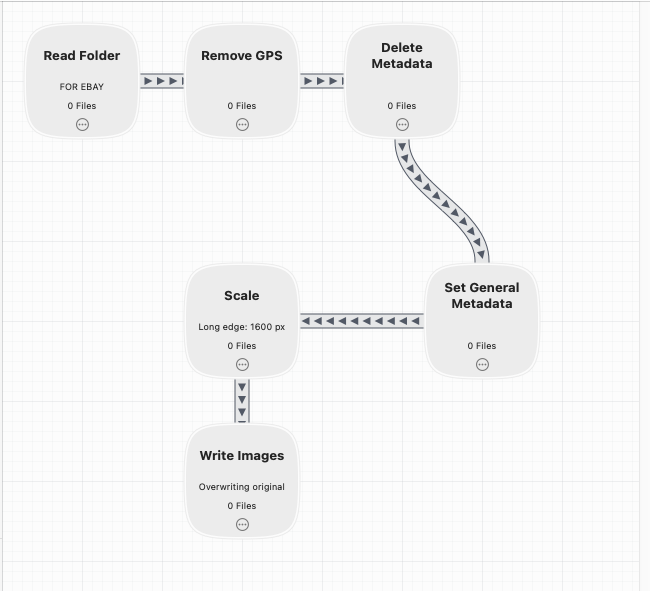
I select the images for a listing from Photos - drag them to a folder; let “magic” happen, and then drag the images from a different folder into GS. I keep a Finder window open with a folder called “For eBay” and in that folder is just one other folder called PostFlight, which remains empty. When I drag the images into For eBay, Hazel runs a Retrobatch Workflow that removes EXIF [GPS, etc] data, resizes the images to fit within 1600x1600, then overwrites the original image. Hazel then runs JPEGmini Pro on the images, overwriting them, and moves them to PostFlight. [EDIT: actually Hazel moves them, then runs JPEGmini Pro].
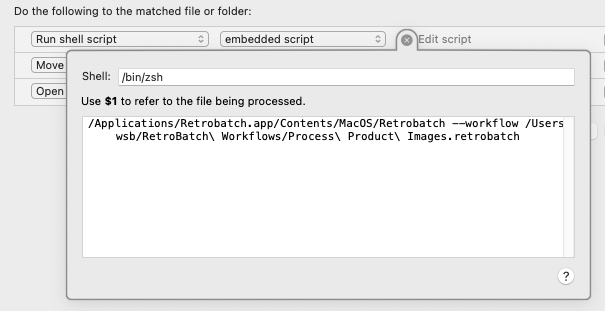
The result are very small [file size wise] images that do not have any human identifiable differences in quality and I drag those into my GS layout template. Since adopting this workflow over a year ago, I’ve not had any beachballs with GS, nor have I had blurry images rendered within GS [the images would not be blurry when posted to eBay, but they would look out of focus in GS, and I didn’t like that since I’d have to make sure I didn’t make a mistake when shooting the image and it really was out of focus]. I’ve attached screenshots here. I Need to explain the script as I used to run /usr/bin/shortcuts but Apple broke that [the GUI shortcuts works, but you can not run automations from Hazel using that], as they forgot to sign the command line app, so I wrote a very basic shell script that runs in Hazel.
So yeah, my image processing relies on 3 paid apps: Hazel, JPEGmini Pro, and Retrobatch. But the time and disc space it saves and the fact that GS has run buttery smooth since I applied this change [I did a one time edit of all product images already in GS after a few months of running this on new listings]. I am still on GS 9.9.2 but hope to update to the latest later this month.
Also note that my Retrobatch workflow has one step that others may not need/want - I do write some metadata after deleting all metadata from the JPEG - I simply populate the author and copyright fields with my biz name so if anyone does scrape my hosted [GS layout] images, they will still have that data embedded in them unless the scraper removes them. Also, Photos has an option as does the default iPhone camera app and many 3rd party camera apps, to not record GPS data when you shoot; I like having that data always on and selectively turning that off when sharing photos, but someone could just as easily use a 3rd party camera app dedicated to product photography, and have GPS data turned off, so you never have to worry about any eBay user seeing your exact location and camera model and all that when you shot the product photo. The biggest difference that Retrobatch makes which one can probably do for free via the Apple Shortcuts app, is the scale the image to fit the longest side into 1600px. I shoot square images for eBay since they use square product images, but my originals are much, much larger, and when I had put those into GS, it killed performance in GS. File size of images matters to both GS and to eBay customers, so keeping the images small, file size wise, but large, detail wise, is key, IMO.